

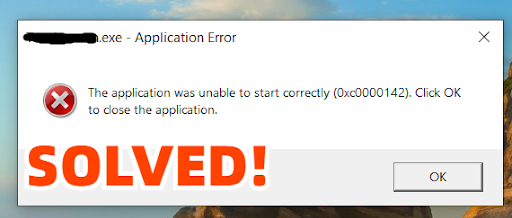
How to Fix Error 0xc0000142 in Windows 11/10 | 2026 Newest
Have you experienced launching Adobe Premiere Pro but aborted by the irritating error 0xc0000142? You’re certainly not alone. This is a common problem among design professionals who start up their favourite editing programs. “It’s not just software for work — gamers get it too.
For example, some users report encountering the 0xc0000142 error when trying to launch Civilisation VI, or other PC games, with the result that the game doesn’t even start. But don’t worry. In this article, we’ll discuss the reason this Windows error occurs and how to fix it so that your application works smoothly again. Let’s get going!
Common Causes of Windows Error 0xc0000142
many users flock to tech forums asking questions such as, “How do I fix the Rekordbox error code 0xc0000142?” or “How to resolve the Adobe Premiere Pro 0xc0000142 error?”
This error may be caused by different things, and if you know what they are, it might be easier to fix them.
Here are a few most likely possibilities:
- Windows System file or DLL is corrupted.
- Newly installed software or updates that could be conflicting with the application you’re attempting to open.
- Older version of Windows or driver not compatible.
- Windows registry entries are corrupted or misconfigured.
- The lack of necessary dependencies, such as the .NET Framework or Visual C++ Redistributables or other libraries.
- Lack of user permission.
- Malware infection.
Bonus Tips: How to Recover Corrupted Files Due to 0xc0000142 Error?
As already noted, the error 0xc0000142 is usually caused by corrupted system files or program components, which can sometimes lead to permanent data loss. Therefore, we recommend using a free file retrieval tool like Tenorshare 4DDiG. It performs well in various data loss scenarios and is compatible with all major Windows versions. Here are more details about this program:
- Supports over 2000 file types, including documents, audio, videos, emails, archives, and photos.
- Ability to recover files from SD cards, PCs/laptops, external and internal drives, and more.
- No technical knowledge required.
- Offers a higher success rate than other recovery tools.
To repair corrupted files using 4DDiG Data Recovery, you can refer as follows:
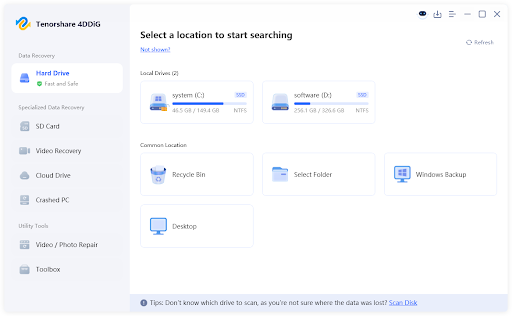
Step 1: Download and Install 4DDiG on your ComputerFree DownloadFree Download. Download, install and launch the program, then select the local drive where the files were saved before corruption. Click “Scan.” Then, You are able to filter the scan by file format.
Step 2: Let 4DDiG scan the sub-disk you have chosen. You also have the option to pause or cancel the operation when you get the files you want.
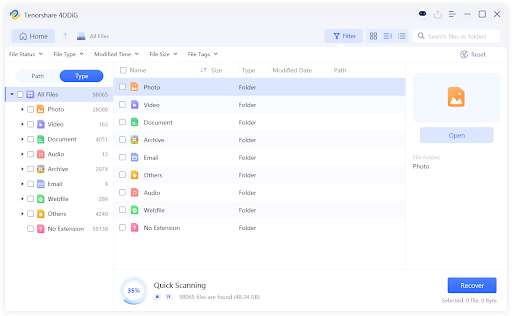
Step 3: Preview the Resulting Recovery and Select the Files on It that you want to get back. Tap the Recover button at the bottom right corner. Recovered files should always be saved to a safe location, and not the original location (which is presumably corrupted), to avoid data overwriting.
How to Fix the Application Was Unable to Start Correctly 0xc0000142?
Fix 1: Reboot Your PC
So the simple solution is bestSometimes is best! Rebooting your machine can flush out temporary hiccups and spiffy up system processes, allowing your apps a fresh start. You should save your work before rebooting.
Fix 2: Run the App as Administrator
Some programs need to be run with higher privileges. Don’t run them as administrator, Windows may block the application and throw the 0xc0000142 error code. To do this, click right on the offending application and select ‘Run as administrator’.
Fix 3: Run the App in Compatibility Mode
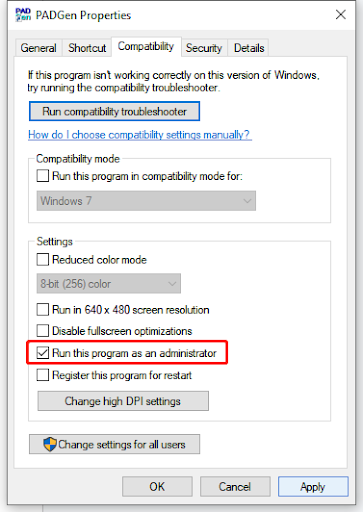
In some cases, Rekordbox error code 0xc0000142 occurs because you’re opening a program that was designed for a previous version of Windows. Here is how you can run the affected app in compatibility mode:
Step 1: Right-click on the application icon and select “Properties.” Next, go to the Compatibility tab.
Step 2: Check “Run this program in compatibility mode for” and select an operating system from the list.
Step 3: Click “Apply,” and then “OK.”
Fix 4: Reinstall Your Application
If the error “Application failed to start correctly (0xc0000142)” still keeps showing, we suggest you reinstall the ailing application. Here is how:
Step 1: Type “Apps & features” in the search box on taskbar. Then, hit Enter.
Step 2: Find the application cannot be run, click on it, and click on “Uninstall”.
Step 3: Then download the new version from the official site and reinstall.
Fix 5: Repair System Files
When you have the 0xc0000142 error on Windows 10/11, it is probably because your system files are damaged or lost. In these situations, the inbuilt System File Checker (SFC) utility comes to rescue. Here’s how to use it:
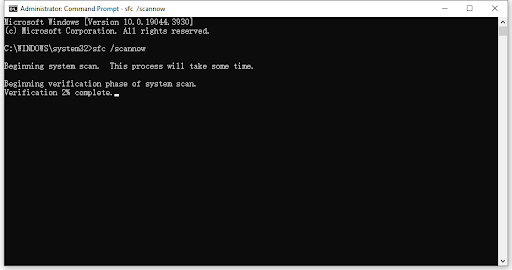
Step 1: Right-click on the Windows icon. Select “Command Prompt (Admin)” from the options.
Step 2: In the Command Prompt window, type sfc /scannow and press Enter.
Fix 6: Do a Clean Boot
One easy way to get rid of the Rekordbox error code 0xc0000142 is to do a clean boot. That’s because applications like antivirus, anti-cheat, VPN or system monitoring tools for hardware tend to create conflicts.
To do so:
Step 1: Press Win + R, type msconfig, and press Enter.
Step 2: At the Services tab, tick on Hide all Microsoft services and then click on Disable all
Step 3: Then, Go to the Startup tab and hit Open “Task Manager.
Step 4: Disable all startup programs. Close the Task Manager and then click OK in System Configuration.
Step 5: Rebot your computer and attempt to run the troubled program after your system boots up.
Fix 7: Reinstall the Microsoft Visual C++ Redistributable packages
Microsoft Visual C++ Redistributable packages are required for the applications you run on your PC. This may occur if the Microsoft Visual C++ 2015 Redistributable packages are corrupted or not installed on your system when they are required. Reinstall them and see if that might resolve the 0xc0000142 error in Office.
Step 1: Open Control Panel and go to Programs and Features.
Step 2: Scan the list of programs and you should find some Microsoft Visual C++ Redistributable entries. Then uninstall all these redistributables one by one as well.
Step 3: Now, once it is uninstalled, download the newest Visual C++ Redistributable files from Microsoft’s website. Then, double-click the installers and follow the prompts.
Step 4: Reboot your machine to let the new packages take full effect.
Fix 8: Update Your OS
Many Windows updates bring not only new features but also fix a lot of problems, including the Adobe Premiere Pro error code 0xc0000142. Here’s how to let’s update your OS:
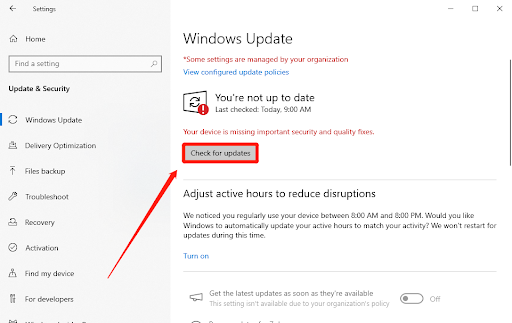
Step 1: Open the Settings app by pressing Win + I, then navigate to “Update & Security”.
Step 2: Then click on “Windows Update. Your Windows will automatically search for the updates.
Step 3: Click “Install” and allow Windows to download and install them if there are any.
Bottom Line
You hopefully now have the knowledge needed to resolve the error 0xc0000142 on Windows 10/11. Be it by updating your system, reinstalling Visual C++ components, or by running a clean boot, these easy solutions will have your applications up and running in no time. Still having trouble? Consider performing a full Windows system repair, or contact Microsoft Support for further assistance.